




What should I do if my iPhone screen is frozen?
Most iPhone issues are quick to resolve. Work through these first.
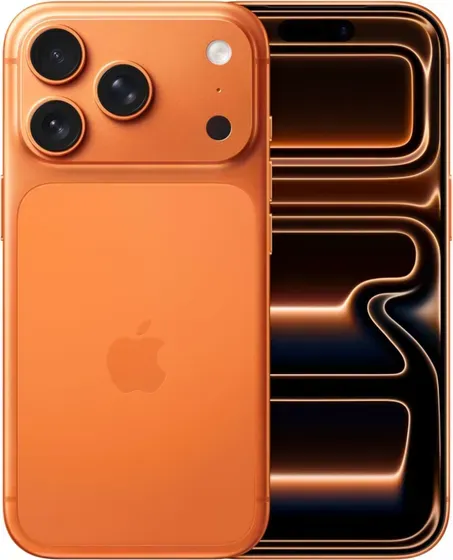
What if my screen is frozen or unresponsive?
- Dry your hands and the screen, and take off any screen protector or case that laps over the edges.
- Force restart: On iPhone 8 and later, press and release Volume Up, press and release Volume Down, then press and hold the Side button until the Apple logo appears. On iPhone 7, hold Volume Down and the Side button together. On iPhone 6s and SE (1st generation), hold the Home button and the Side or Top button together.
- Once it is back, install any waiting software update and check you have some free storage.
- If it only freezes in one app, delete that app and install it again.
- If it freezes during charging, try another cable and charger.
- Freezing again and again after all that is a fault, not a setting. Contact us.
Why won’t my iPhone turn on or charge?
- Try a different cable and charger, and a different power socket.
- Charge for at least 30 minutes, then try again.
- Force restart it with the buttons above, then try the power button again.
Why does my iPhone show no signal, or say the SIM is not detected?
- Reseat the SIM and check your network has coverage.
- Restart the device, then look for a carrier settings update in Settings → General → About.
Why won’t my iPhone connect to Wi-Fi or Bluetooth?
- Toggle the connection off and on.
- Forget the network/device and reconnect.
- Reset network settings if needed.
Why is my iPhone slow, freezing or crashing?
- Install the latest updates.
- Free up storage space.
- Restart; as a last resort, back up and reset.
Why is there no sound from my speaker?
- Check the volume, and that the ring/silent switch or Action button has not muted it.
- Play something in Music to test the bottom speaker, then a video to test both.
- Brush the speaker grilles out gently with a soft dry brush. Packed-in lint sounds exactly like a dead speaker.
- Turn Bluetooth off, in case the sound is going to a speaker or a car somewhere else.
- Still silent or muffled after a restart? That is a repair, so contact us.
Why can’t I hear anything on calls?
- On the call, turn the volume up and check it has not switched to speaker, a headset or CarPlay.
- Clean the earpiece slot above the screen, and take off any screen protector covering it.
- Turn off Settings → Accessibility → Audio & Visual → Phone Noise Cancellation.
- If callers cannot hear you either, record something in Voice Memos to test the microphone.
- Fine on speakerphone but not on the earpiece points at the earpiece: contact us.
Why won’t my computer or iTunes recognise my iPhone?
- Unlock the iPhone and tap Trust on the prompt. No prompt at all? Settings → General → Transfer or Reset iPhone → Reset → Reset Location & Privacy, then plug it in again.
- Try another cable and a port on the computer itself rather than a hub or a monitor. A charge-only cable carries no data.
- On a Mac the iPhone shows in the Finder sidebar, not in iTunes. On Windows, install or update Apple Devices (or iTunes) and make sure the Apple Mobile Device USB driver is enabled.
- Restart both, then try again.
What are the common iPhone issues?
Face ID isn’t working
Make sure nothing covers the TrueDepth camera at the top of the screen, clean it gently, and re-add your face in Settings → Face ID & Passcode. If it still fails after a restart, it may be a hardware fault - contact us.
“No SIM” or no service
Reseat the SIM, toggle Airplane Mode on/off, then check for a carrier settings update in Settings → General → About. For an eSIM, contact your network to re-provision it.
Gets warm or drains fast
Some warmth is normal during setup, updates and restores. Remove any case while charging; if heavy drain continues after a day, check Settings → Battery for the culprit app.
Screen won’t respond to touch
Remove any screen protector, clean and dry the screen, then force restart. A cracked or previously-damaged screen needs a repair.
Still not right? Your iPhone may be covered by its 12-month warranty - contact us.
Was this article helpful?
